Animating in ThreeJS
Here are some techniques for animating scenes in ThreeJS.
In a previous article, I explained how to create a box—or a monolith—with ThreeJS.
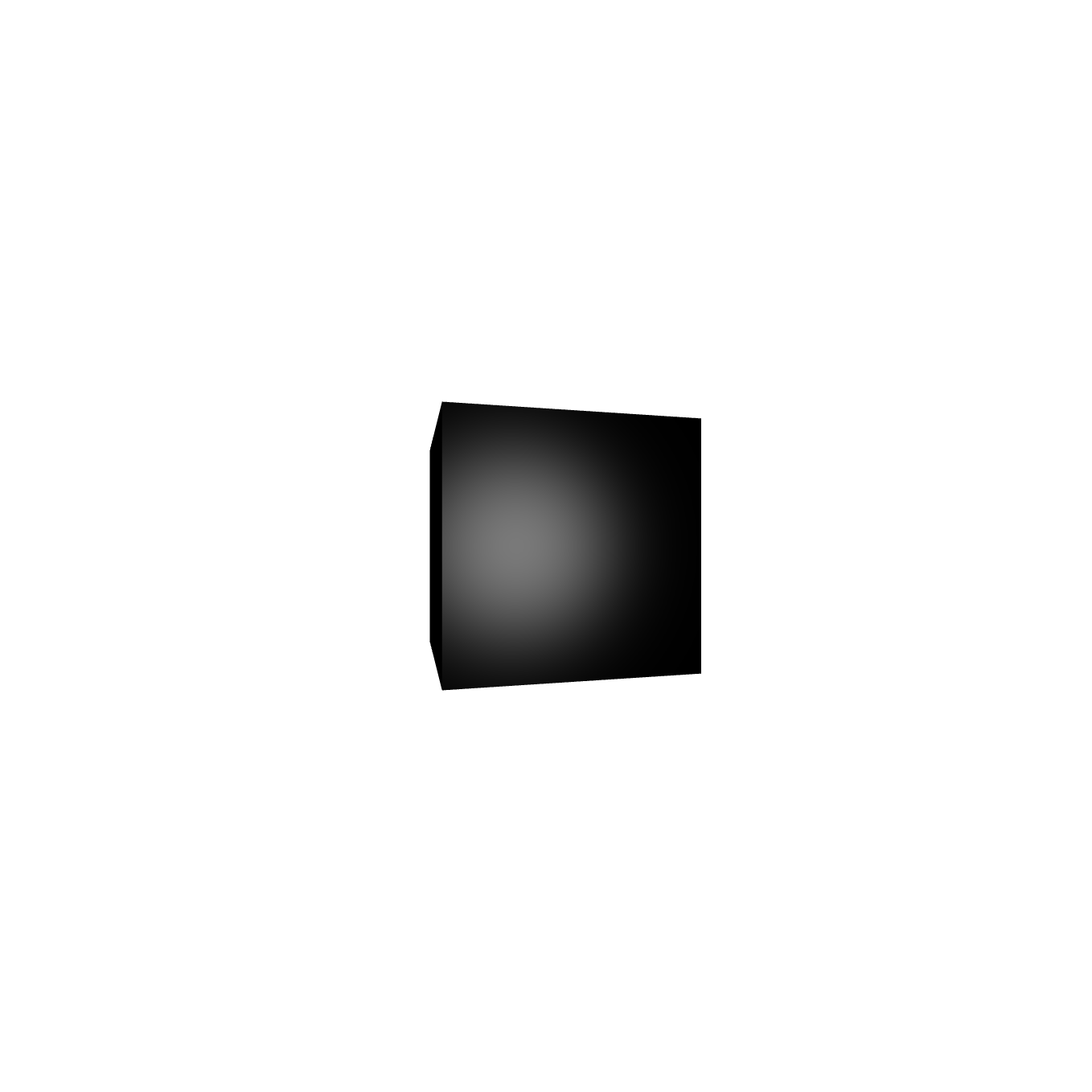
Now this box is a "scene" in the sense that I used a ThreeJS Scene to hold what I was rendering. But is it really a scene?
Let's consult the dictionary.
According Oxford Languages, a scene is, "a sequence of continuous action in a play, movie, opera, or book."
So the box I made previously was a JavaScript-based web visual, but not quite a scene in the dictionary sense. A scene needs action.
So let's add some continuous action—in other words animation—and prove to the dictionary editors that you can have scenes on the web, too.
Animating the Box
For the animation, I want to show off all of the box's three dimensions, so I'm going to rotate it around its three axes.
In ThreeJS, this means updating the box's rotation property, rendering it, updating its rotation again, rendering it again, and so on, infinitely.
The function that controls this process is often called an animation loop (or render loop) since it loops over and over again. I'll call that function tick because it should tick, or run every single frame when the scene is active.
Making it tick
But what even is a frame when it comes to doing something on a web browser? I usually think of a frame as one of the frames on a film reel that, when shown in rapid succession, give the illusion that something's moving on screen.
A "frame" on the web is almost the same thing, except that it's a screen's pixels that are changing instead of frames on a reel. The key difference is that it's not exactly predictable how fast the browser is able to update the pixels on screen and move on to the next frame. It can vary slightly each frame, and can also vary between devices and user sessions, depending on the compute-intensiveness of what's being rendered and on the particular device that's doing the rendering.
To do something every frame on the web, you can use the browser's window.requestAnimationFrame() method. This takes the function you want to keep calling over-and-over—in this case, the tick function—and calls it once the browser has finished rendering the last frame and is ready for the next one. Importantly, window.requestAnimationFrame() needs to be called from inside the tick function so the next tick runs once the current one is finished.
The tick function that will run the animation should look something like this, with a placeholder comment for where I'll do the updates to the scene. You also have to call the function once to start it off, which I do below.
const tick = () => {

    // update scene (e.g. update an object's rotation, etc.)

    renderer.render(scene, camera); // render scene
    window.requestAnimationFrame(tick); // run tick again once the browser is ready
}
tick();
This might be easier to wrap your head around if you replace window.requestAnimationFrame(tick) with just tick(). That's essentially what we're doing: calling tick() recursively, over and over again, from inside tick(). What the window.requestAnimationFrame() does is throttle the next tick(), so instead of running instantly, it runs once the browser is ready. That usually takes about 1/30 - 1/60 of a second, or 30-60 times a second, depending on the device and intensity of the scene; the ThreeJS add-on stats.js is a great tool for monitoring frame-rate.
This is convenient from a developer's perspective because you don't have to worry about the frame-rate, except to make sure your scene runs at a reasonable frame-rate on most devices. The frame-rate could theoretically scale up or down infinitely depending on the device's speed or power (unlike a movie scene which is forever stuck at the frame-rate that it was filmed in). The only catch is that, if you want a consistent experience across all devices, you have to make your animation frame-rate agnostic. In other words, you don't make changes to the scene on a frame-by-frame basis, but instead use the elapsed time—either since the animation started or since the last frame—to update the scene.
Updating the Box
We therefore need to animate by rotating the box by a fixed amount per unit of time. To do that we also need some way to keep track of time outside the animation loop.
ThreeJS has a built-in Clock object for doing just this. We'll create the clock, start it, and then use its getElapsedTime() method to get the elapsed time. Then we can multiply that elapsed time by a rotation speed to update the box's rotation each frame.
To set the box rotation speeds, we can create a JavaScript object called animationParams with properties for the x, y, and z rotation speeds. I'll set the x-axis rotation speed to .05 rotations per second, and set the y and z rotations at a slightly faster .1 rotations per second to add some randomness.
They're set as a proportion of a full rotation, so I'll multiply each by Math.PI*2 (or 360 degrees).
const animationParams = {
    xRotationSpeed: .05*Math.PI*2,
    yRotationSpeed: .1*Math.PI*2,
    zRotationSpeed: .1*Math.PI*2,
}
I'll then use the set() method of the box mesh's rotation property to set the rotation to be the speed multiplied by the elapsed time.
The code for initiating the clock and then defining the tick function, along with the box updates, now looks like this:
const clock = new THREE.Clock(); // initialize the ThreeJS Clock object
clock.start(); // "start" it by calling the start() method on it

// set the rotation speeds for the box.
const animationParams = {
    xRotationSpeed: .05*Math.PI*2,
    yRotationSpeed: .1*Math.PI*2,
    zRotationSpeed: .1*Math.PI*2,
}

const tick = () => {

        const elapsedTime = clock.getElapsedTime(); // get the elapsed time at each frame

        // multiply the elapsed time by rotation speed to get the new rotation value
        const xRotation = elapsedTime*animationParams.xRotationSpeed;
        const yRotation = elapsedTime*animationParams.yRotationSpeed;
        const zRotation = elapsedTime*animationParams.zRotationSpeed;

        boxMesh.rotation.set(xRotation, yRotation, zRotation); // set the new rotation values on the box mesh

        renderer.render(scene, camera); // render the scene with the updated box in it.


    window.requestAnimationFrame(tick); // request next frame from browser when its ready

}
tick(); // call tick function to start the animation
It's alive: a continuously rotating box. It'll keep rotating forever as long as you keep your browser window open and don't run out of power.
Freeze
Sometimes, though, you want to pause the animation—like if you get too dizzy from all the rotation.
So let's add a control that, when triggered, freezes the animation in place, and then restarts it smoothly when triggered again.
First we need a variable that signifies whether the animation is currently "active" or "frozen". We can call it animationActive.
Then we can add an if condition inside the tick() function that skips the updating and rendering steps if animationActive is false. We still need to call window.requestAnimationFrame(tick) regardless of whether the animation is active so the animation loop will keep "ticking". The updated tick function will look like this, with the scene updates now happening inside the if block:
let animationActive = true;
const tick = () => {
    if (animationActive) {

        const elapsedTime = clock.getElapsedTime(); // get the elapsed time at each frame

        // multiply the elapsed time by rotation speed to get the new rotation value
        const xRotation = elapsedTime*animationParams.xRotationSpeed;
        const yRotation = elapsedTime*animationParams.yRotationSpeed;
        const zRotation = elapsedTime*animationParams.zRotationSpeed;

        boxMesh.rotation.set(xRotation, yRotation, zRotation); // set the new rotation values on the box mesh

        renderer.render(scene, camera); // render the scene with the updated box in it.
    }

    window.requestAnimationFrame(tick); // request next frame from browser when its ready

}
We also need a way to change the animationActive variable from its original state. We can add a keypress event listener that changes the value of animationActive when a certain key is pressed.
Since we're "freezing" (and unfreezing) the animation, we can use the "f" key.
That event listener can look like this (the exclamation point in front of animationActive makes it the opposite of its current state):
window.addEventListener('keydown',(event)=> {
    if (event.key=='f') {
        animationActive = !animationActive;
    }
});
Now we can freeze and unfreeze the animation just by pressing the "f" key.
Subtracting paused time
Did you notice an issue, though? When we restart the animation, the elapsedTime doesn't care that the animation was frozen for a period of time. So it restarts at where it would be had it never been frozen, meaning it "jumps" to a new state.
To start and stop the animation smoothly, we need to keep track of the amount of time the animation is "frozen" and then subtract that time from the total elapsedTime when we update the scene. If you're a soccer fan, you can think of this like the "stoppage" time that gets tacked on at the end of soccer matches to make up for time when the match was "frozen" due to fouls/substitutions/etc.
We can call this variable pausedTime. To set it correctly, we'll have to get the elapsed time when the animation is paused. Then, when it restarts, we take the elapsed time since it was paused and add that to the pausedTime.
We can put this all in a function called onFreezeTrigger which will end up looking like this:
let pausedTime = 0;
let lastPauseTime = 0;
const onFreezeTrigger = () =>; {
    if (animationActive) {
        // animation currently active, so we're going to freeze it and get the current elapsed time
        lastPauseTime = clock.getElapsedTime();
        animationActive = false;
    }
    else {
        pausedTime += clock.getElapsedTime() - lastPauseTime;
        animationActive = true;
    }

}
Since our trigger is pressing the "f" key, the keydown event listener now looks like this:
window.addEventListener('keydown',(event)=> {
    if (event.key=='f') {
        onFreezeTrigger();
    }
});
Now we just need to subtract the pausedTime from the elapsedTime inside the tick() function, to get the "real" elapsed time we'll use to update the scene.
So inside the tick function, calculating elapsed time will now look like this:
const elapsedTime = clock.getElapsedTime() - pausedTime; // get the elapsed time at each frame
Now we've got a contiuously rotating box or a frozen box, and a smooth transition from a frozen to an animated state.
Controlling animation speed
Sometimes you want to go fast and other times you might want to take it slow.
So let's add some controls so the user can set the the animation to their own speed.
We can use the ThreeJS add-on GUI which is a small plugin that let's you add controls to adjust various parameters of a scene. To use it, you can simply import it at the top of your script like so:
import { GUI } from 'three/addons/libs/lil-gui.module.min.js';
For arguments, the GUI() takes the object the parameter is stored in (in our case animationParams), then the name of the particular value being set (e.g. xRotationSpeed) and then, if it's a range-based, or continuous, parameter, the minimum value it can take, the maximum value it can take, and the "step" or how small of a step you can take between values.
I'll add our parameters to the GUI with a minimum of 0, max of 1, and step of .01. I'll also add labels with the name() method.
const gui = new GUI();

gui.add(animationParams, 'xRotationSpeed', 0, 2,.01).name('X Rotation Speed');
gui.add(animationParams, 'yRotationSpeed', 0, 2,.01).name('Y Rotation Speed');
gui.add(animationParams, 'zRotationSpeed', 0, 2,.01).name('Z Rotation Speed');
Smoothly updating animation speed
You might have noticed a slight issue: the box is jumping to a new state when the speed is updated. I call this the animation law of entropy: animations are choppy and uneven until you act upon them to make them smooth.
To smoothly transition between speeds, we can keep track of the current state of the properties we're animating and then use the delta time or the time elapsed since the previous frame, to update those properties relative to their previous state. That should keep things smooth.
As an example, say the last x-rotation value was 180 degrees. If .1 seconds elapsed since the last frame and the x-rotation speed is set at .1 rotations per second, then we'll add .1*.1*360 degrees, or 3.6 degrees to its current rotation, giving it a new rotation of 183.6 degrees. That way, regardless of how often the speed is changed, the rotation should still seem continuous.
To put this into code, I'll create an object to store the rotation states called boxState.
Then, inside the tick function I'll get the delta time from the clock with the method getDelta. I'll multiply that delta time by the rotations speeds to get the "delta rotation speed" to add that to the current rotation state to get the new rotations.
After updating the box with the new rotations, I'll set the rotation state in the boxState to be the updated rotation values. Then those will be used as the current state in the next frame, and so on.
Finally, we still want to be able to "freeze" the animation, but we no longer need to keep track of paused time. We just have to update the clock by calling getDelta() when unfreezing the animation so that the new delta time will be since we unfroze it, not since the last frame from before we froze it.
The updated code for animating the box and controlling the animation speeds smoothly is below.
const boxState = {
    xRotation: boxMesh.rotation.x,
    yRotation: boxMesh.rotation.y,
    zRotation: boxMesh.rotation.z,
};

let animationActive = true;
const tick = () => {
    if (animationActive) {

        const deltaTime = clock.getDelta(); // get the delta time at each frame

        // multiply the elapsed time by rotation speed to get the new rotation value
        const xRotation = boxState.xRotation + deltaTime*animationParams.xRotationSpeed;
        const yRotation = boxState.yRotation + deltaTime*animationParams.yRotationSpeed;
        const zRotation = boxState.zRotation + deltaTime*animationParams.zRotationSpeed;

        boxMesh.rotation.set(xRotation, yRotation, zRotation); // set the new rotation values on the box mesh

        renderer.render(scene, camera); // render the scene with the updated box in it.

        // update box state for next frame
        boxState.xRotation = xRotation;
        boxState.yRotation = yRotation;
        boxState.zRotation = zRotation;

    }

    window.requestAnimationFrame(tick); // request next frame from browser when its ready

}
tick();

const onFreezeTrigger = () => {
    animationActive = !animationActive;
    if (animationActive) {
        const deltaTime = clock.getDelta();
        // resets clock so getDelta() will be since now (so no jumps)
    }

}

window.addEventListener('keydown',(event) => {
    if (event.key=='f') {
        onFreezeTrigger();
    }
});
Hopefully you learned something today .
You can find all the code for from this article on Github.